Best GTA 6 Settings on PS5, PS5 Pro and Xbox: Graphics, Camera, Controls and HUD
GTA 6 has no Quality or Performance mode: it runs at 30 fps on every console. These are the image, camera, control, HUD, audio and HDR settings worth changing before you play.
Quick answer
GTA 6 has no Quality or Performance mode. Rockstar targets 30 fps on PS5, PS5 Pro, Xbox Series X and Xbox Series S, and the settings menu has no resolution or frame rate option. What you can change are image, camera, control, HUD and audio settings that noticeably alter how the game feels. The ones worth checking before your first mission: Motion Blur Strength (default 3), Camera Shake, sensitivity, movement speed and subtitles. Everything lives under Pause > Settings, and each tab has a restore-defaults button, so experimenting is safe.
The recommendations come from guides published after the November 19 launch (Output Lag, KeenGamer, Red Bull, Destructoid) and from a video of the menu itself. Where they disagree, we give both versions.
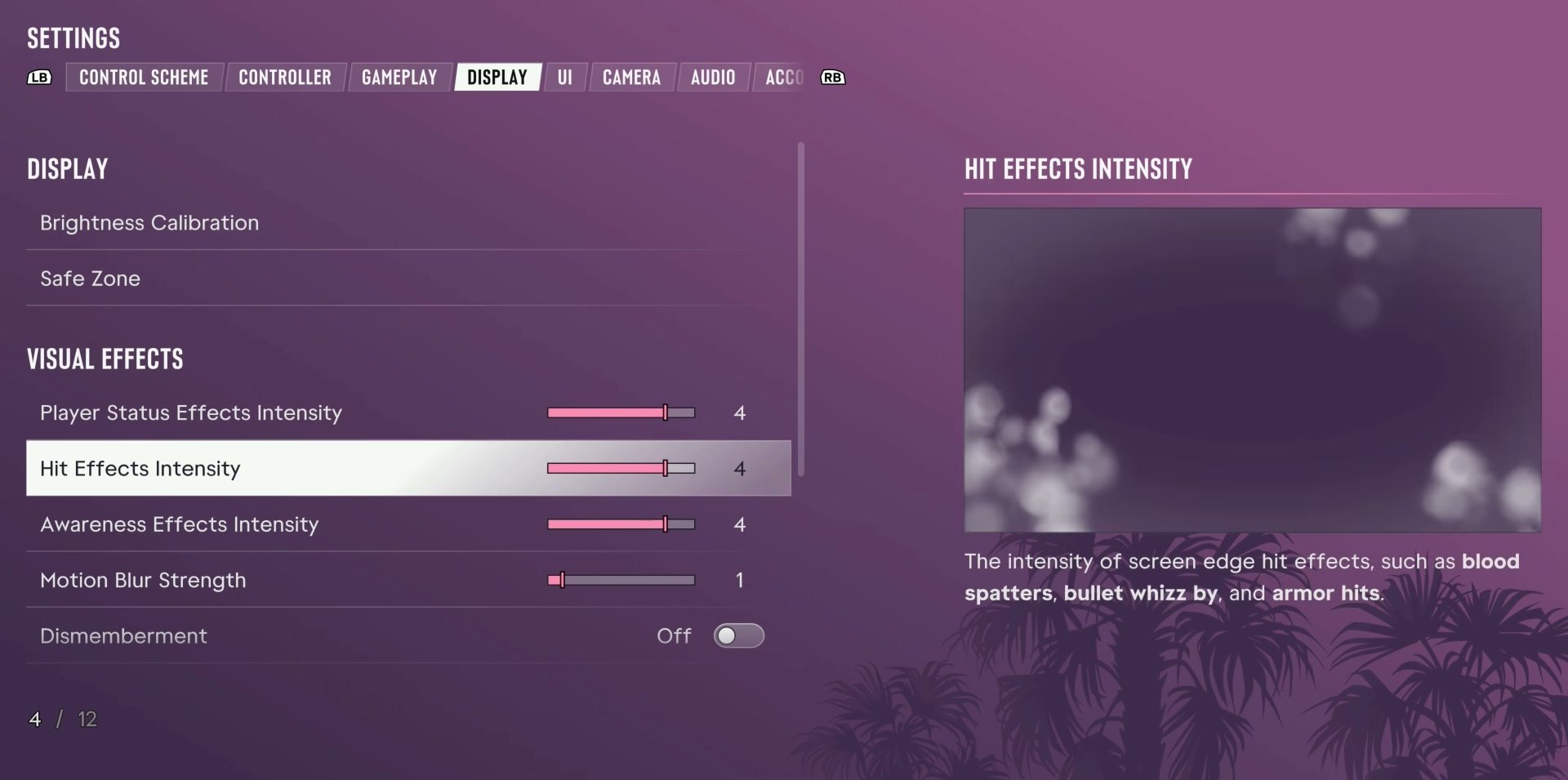
Image: DPJ (YouTube)
Graphics modes: there are none, and this is what changes between consoles
Rockstar says GTA 6 targets 30 fps on every console, and KeenGamer, Output Lag and Red Bull agree there is no Performance mode. What differs between consoles is sharpness and how steady those 30 fps are. The figures come from Digital Foundry's analysis (via GTA BOOM and PC Gamer, covered here) and from Output Lag:
- PS5 Pro: renders around 1440p and PSSR upscaling brings it close to 4K. It holds a near-locked 30 fps and only drops to about 24 in very big explosions. It is the only one with ray-traced shadows, which Rockstar itself confirms.
- PS5: also around 1440p, but the image is softer and it has small, frequent dips. According to PC Gamer, even when just driving through the city.
- Xbox Series X: about 1440p and 30 fps most of the time. Digital Foundry reports 20-22 fps in big shootouts; Output Lag says the upper 20s in chases and about 20 at worst.
- Xbox Series S: around 720p internally, upscaled (FSR 4 to nearly 1080p according to Digital Foundry), with lower-quality reflections, shadows and hair, and below 30 fps most of the time in action.
There is a separate rumor: the PS5 Pro pre-load metadata points to a 120Hz mode and a newer PSSR version, but Rockstar has only confirmed PSSR and the shadows, so it is still unconfirmed. GTA 6 also reaches Xbox One through the cloud, using the Series S graphics settings.
Before your first mission: the 6 settings that change the most
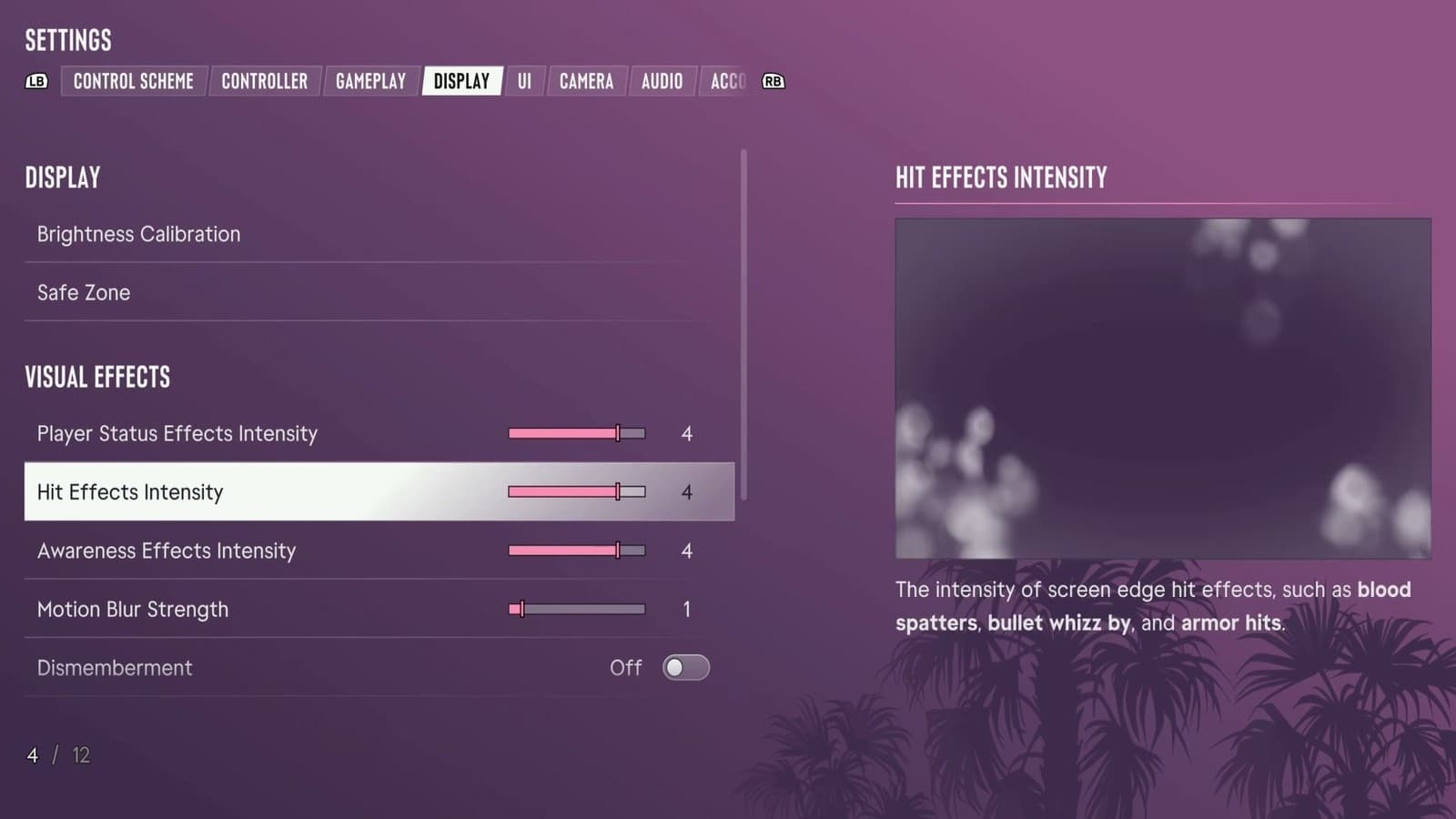
- Motion Blur Strength (Display), from 3 to 0. KeenGamer, Output Lag and Red Bull ("zero to low") recommend it. At 30 fps the blur smears every camera turn, so removing it helps mostly in chases and shootouts. Output Lag adds that if 30 fps feels choppy you can try 1 or 2. Destructoid settles on 1.
- Camera Shake and Camera Bob (Camera > Comfort). Shake Off and Bob from 10 to 0 if you get motion sick (Output Lag). Red Bull is gentler: Shake Off and Bob between 3 and 5.
- Sensitivity (Controller). Look and Aim default to 7 out of a maximum of 14. Output Lag raises both to 9 or 10. Red Bull and Destructoid leave Look at 7 and lower Aim to 5 or 6 for precision. Two philosophies: raise Look if the camera feels slow, lower Aim if you overshoot when aiming.
- Movement speed (Gameplay). The default is Walk. Output Lag picks Run and Destructoid Jog, so you are not strolling everywhere. Untouched, running means clicking L3 (left stick click) and clicking again to sprint.
- Control scheme (Control Scheme). There are Default, Classic and Left-Handed. Classic puts running back on X (A on Xbox), as in GTA 5. The Preview list shows each layout (on foot, aiming, melee, vehicles, aircraft, bicycle, swimming and parachute) before you commit.
- Subtitles (UI). By default they only show in missions (Mission Only). KeenGamer sets them to On so you also follow chatter outside missions.
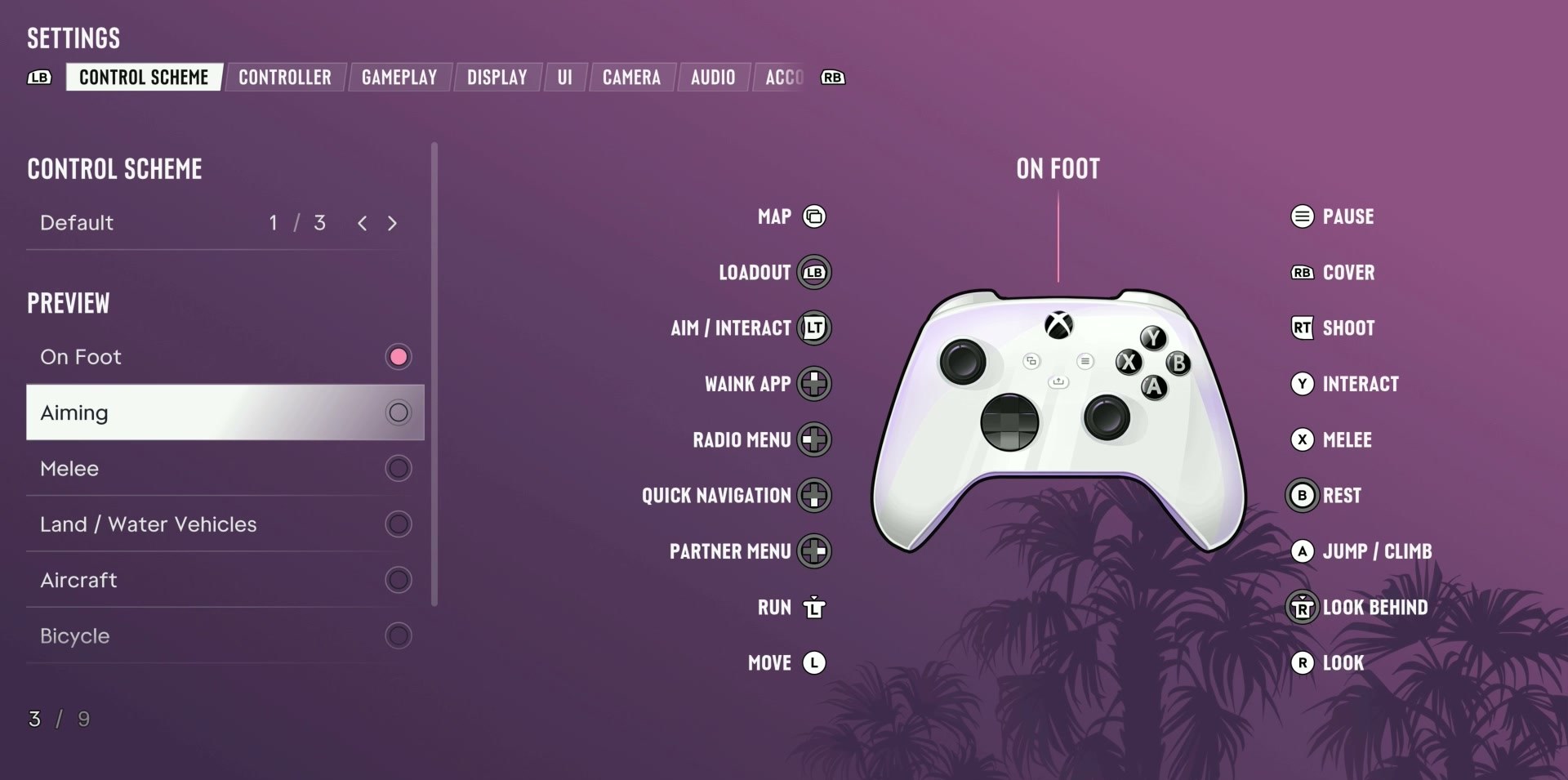
Image: DPJ (YouTube)
Camera: comfort and vehicles
The Camera tab is split into on foot, land and water vehicles, aircraft and underwater. For each you can pick the height (Low, Medium or High; High works like a wider view) and how fast the camera follows your character. Comfort holds Camera Preferences, Weapon Sway, Camera Shake and Camera Bob.
Two more things Output Lag points out. The cinematic crash camera (Cinematic Vehicle Crash Frequency, Camera > Cinematic) defaults to 3; drop it to 0 or 1 if those slow-motion cameras interrupt your driving. And on PS5, holding down on the d-pad opens the camera options, with three distances. If you want the car to drive itself, see our auto drive guide.
There is no first-person view either: the only one is the phone (Camera > Comfort > Phone Display), according to Output Lag.
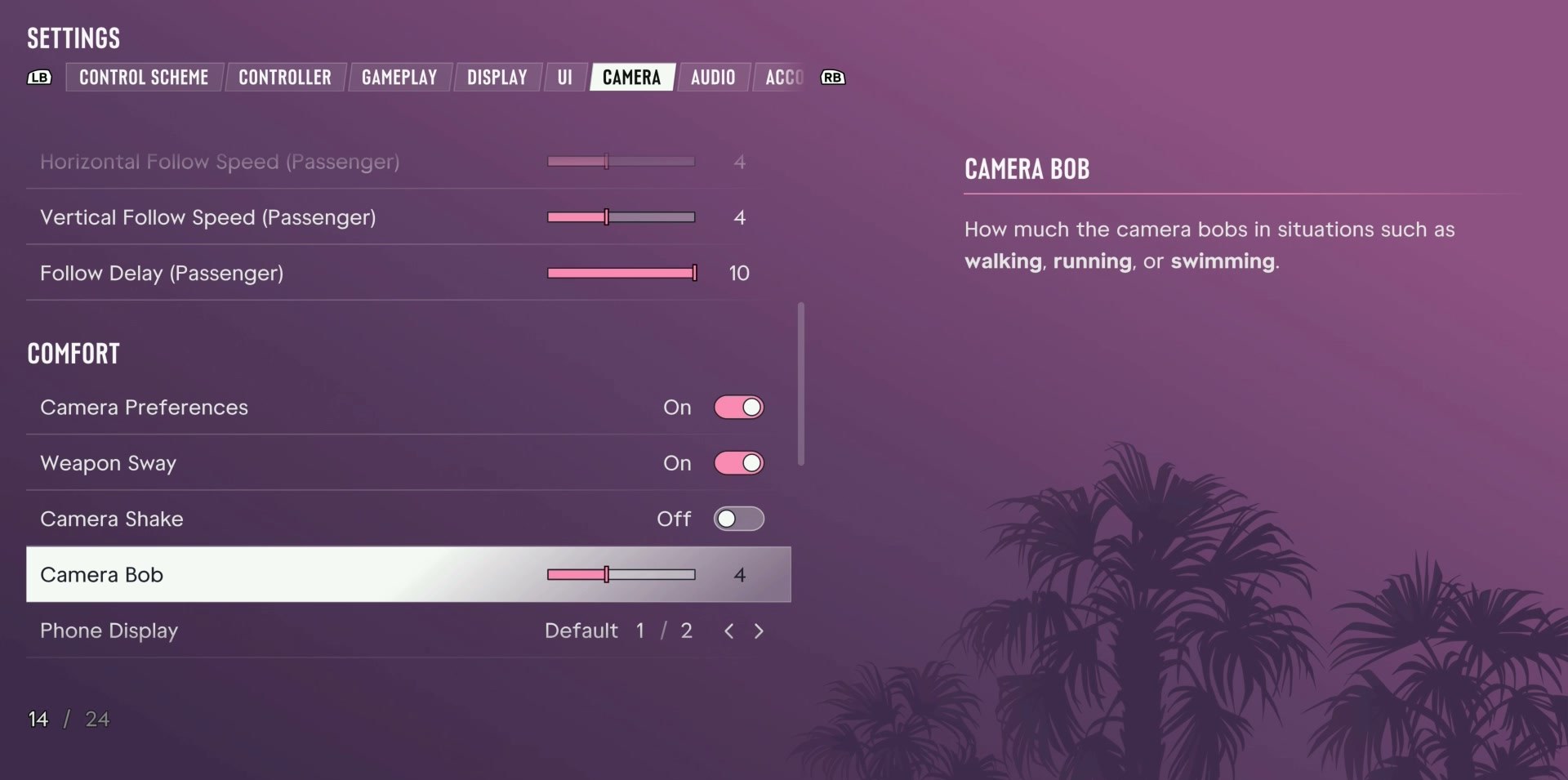
Image: DPJ (YouTube)
Controls and aiming
Gameplay holds what matters most in shootouts:
- Targeting: Partial according to Red Bull and Destructoid. It nudges your aim toward targets without locking on. Lock-On and Free Aim are also available.
- Aim Assist Strength: 4 as a starting point (Red Bull and Destructoid).
- Shooting Assist, Drive-By Assist and Quick Draw: On, again per both. Quick Draw pulls out your last-used weapon instantly.
- Aim Response Curve (Controller): Standard by default, and Red Bull keeps it. Output Lag and Destructoid prefer Linear, which makes the reticle match exactly how far you push the stick.
- Accessible Combat and Reduced Vehicle Damage: leave them off at first, per Red Bull. They lower enemy health and the damage you take, and since GTA 6 has no difficulty selector they are the only way to ease the game, and you can switch them off at any time.
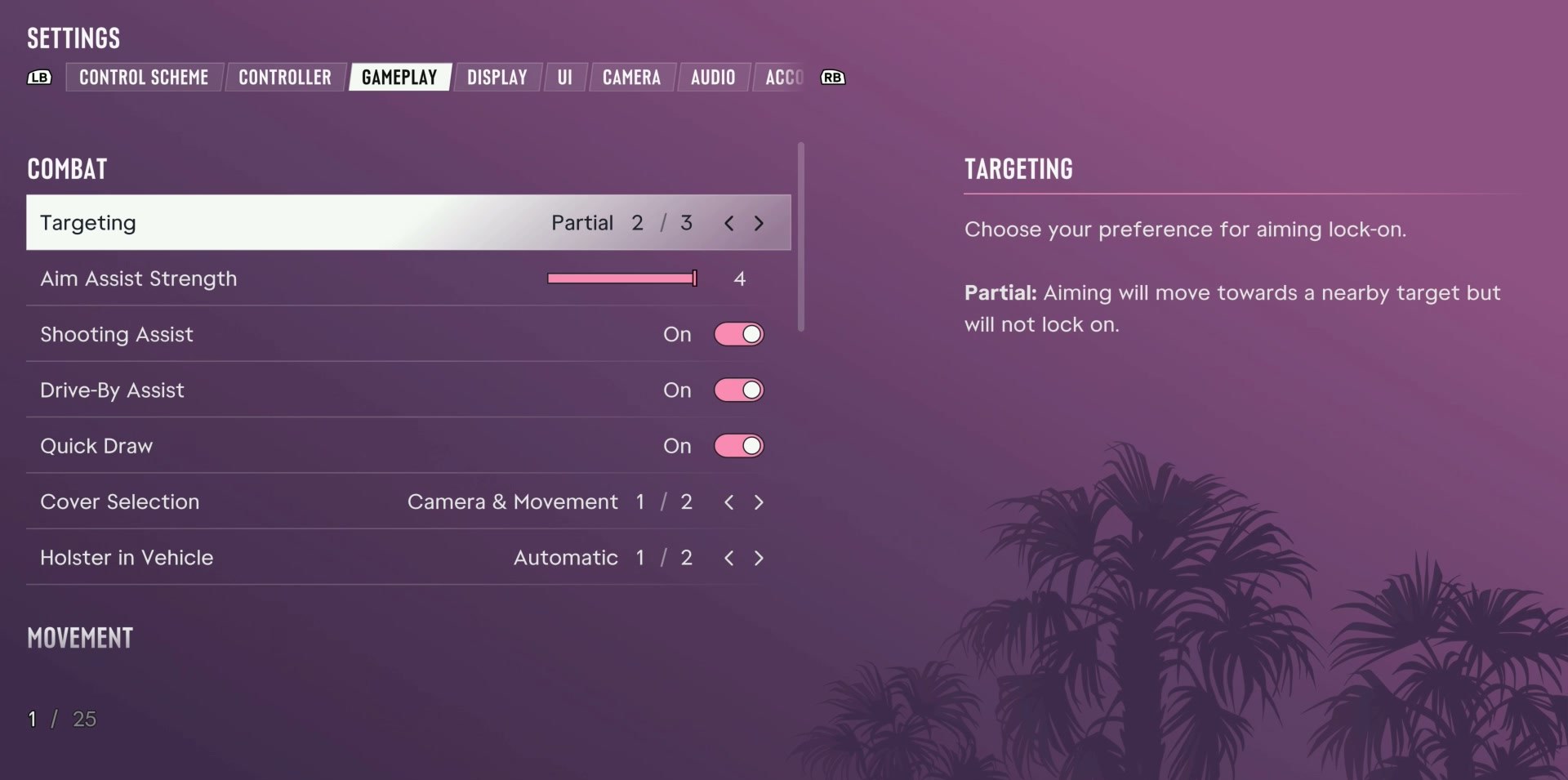
Image: DPJ (YouTube)
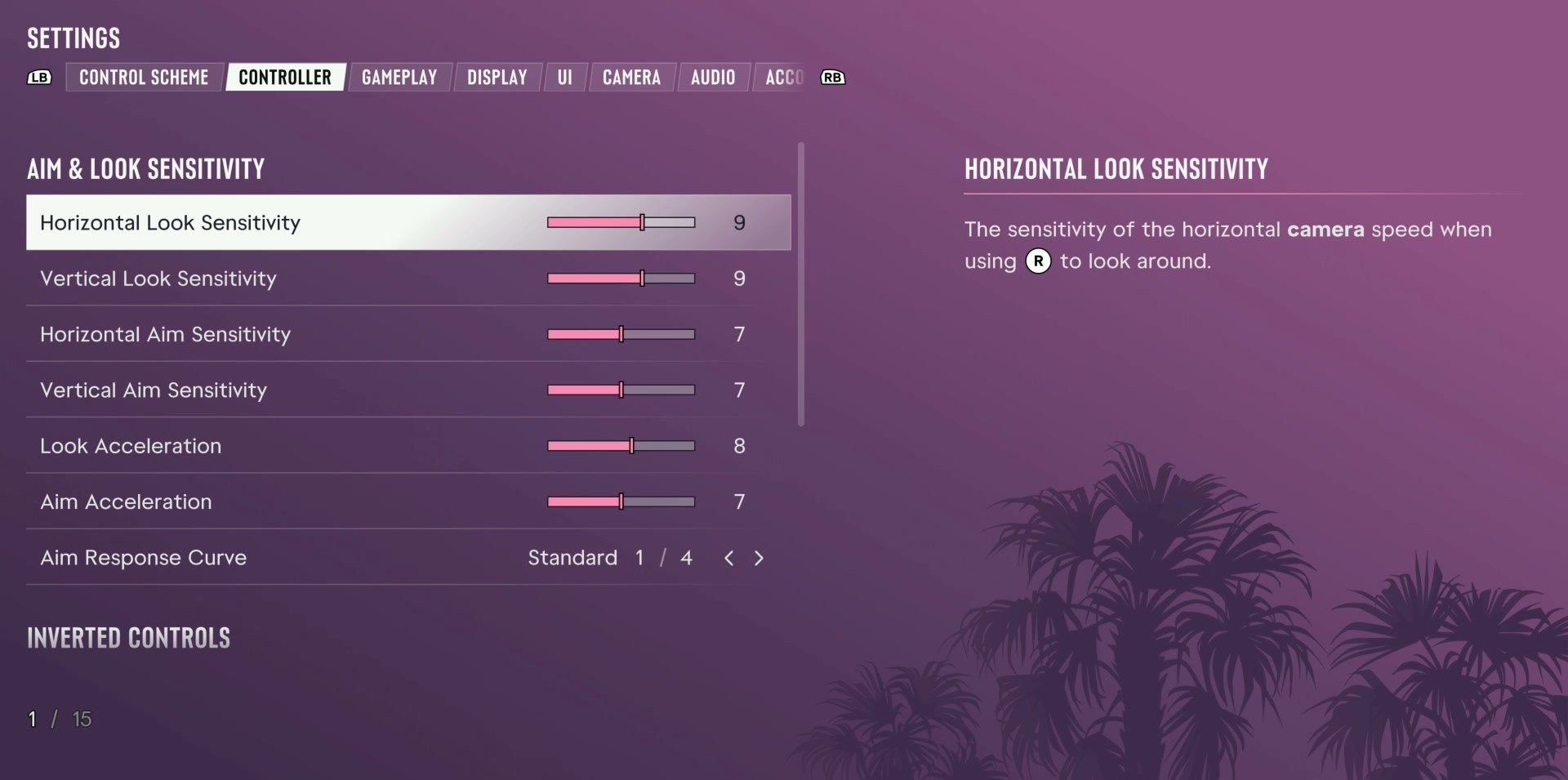
Image: DPJ (YouTube)
Vibration, dead zones and PS5 controllers
On PS5, Rockstar highlights DualSense haptic feedback and says it can be adjusted in the accessibility options. The Controller tab also has vibration and haptic strength, adaptive trigger resistance, each stick's dead zone and what the touchpad does (map or camera). Output Lag advises keeping it on Map for one-press access. Red Bull recommends the lowest dead zones that do not make the camera drift: lower them step by step until you notice drift, then go up one notch.
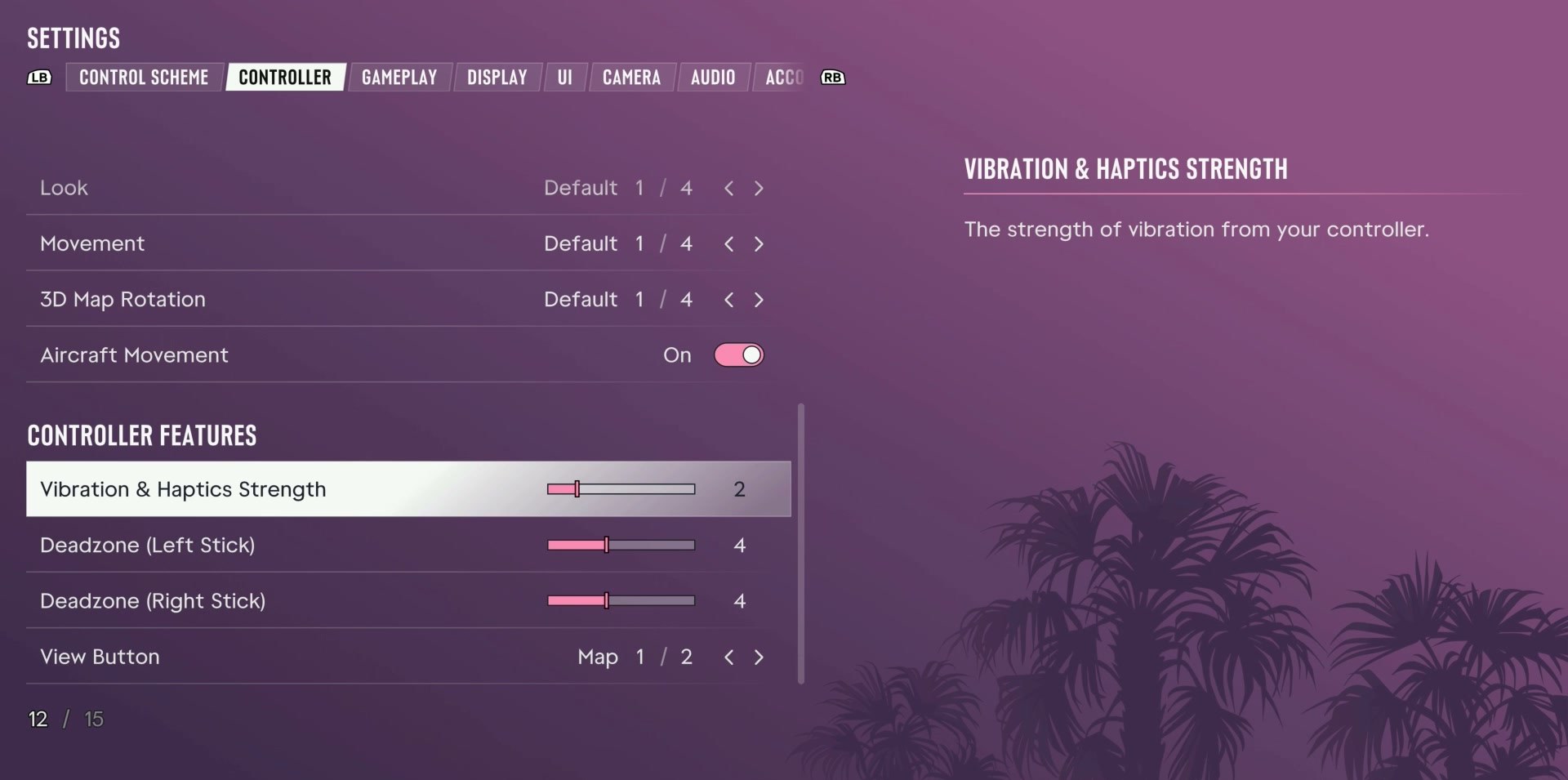
Image: DPJ (YouTube)
HUD and minimap
In UI, Red Bull sets the minimap to always visible instead of Dynamic, so it does not vanish when you need it, and keeps the GPS route, turn indicators and markers on. Destructoid just leaves it On. Output Lag raises the map and minimap icon sizes to Large while you learn Leonida and turns Street Names on. If your TV crops the HUD, Safe Zone is in Display.
The reticle is customizable too: Destructoid turns on the persistent center dot and hit markers. On Projectile Arc there are two opinions: Output Lag wants it always on, Destructoid off. Red Bull suggests metric units, a 24-hour clock and medium or large interface text.
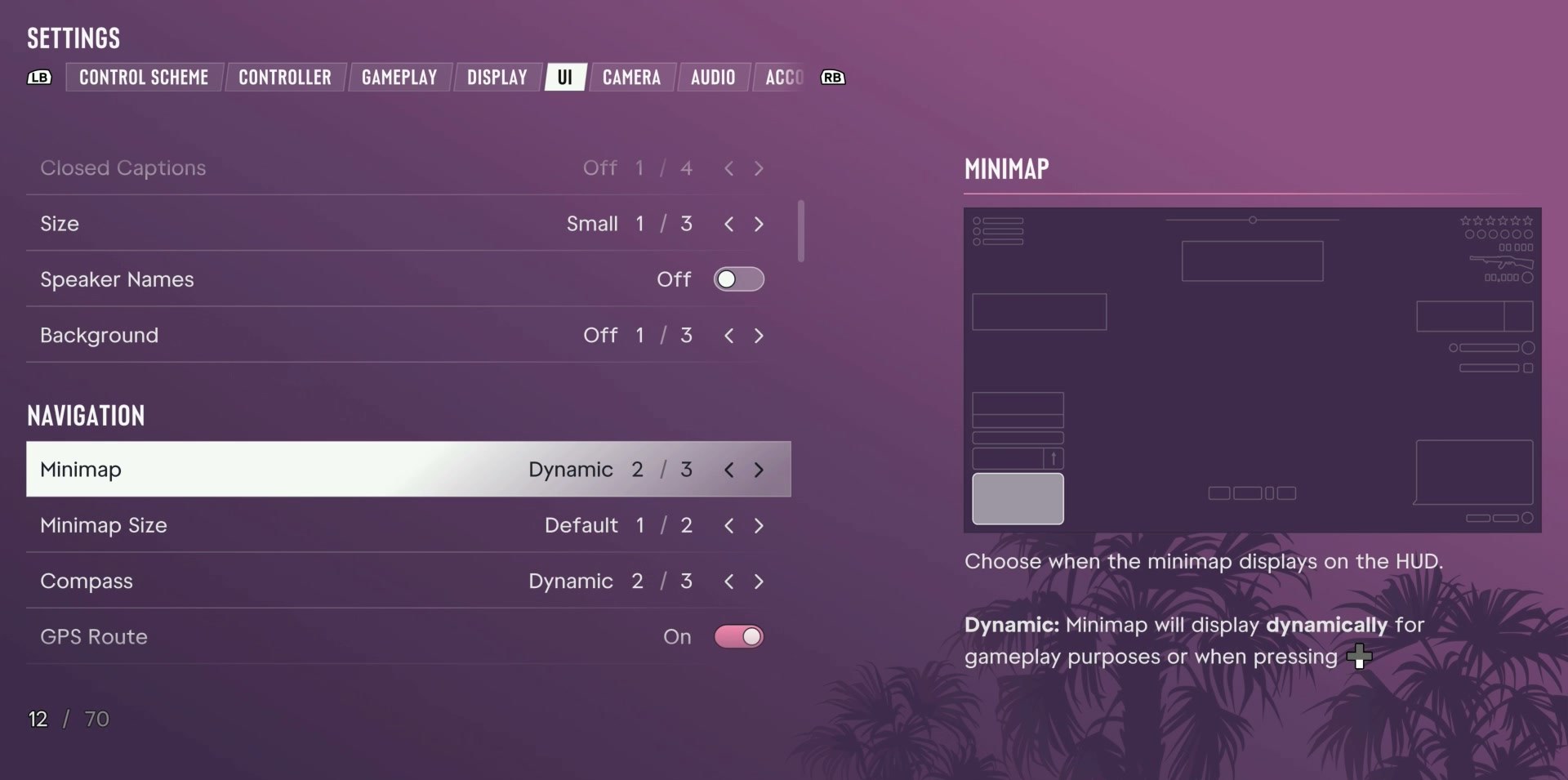
Image: DPJ (YouTube)
Subtitles and audio
Subtitles are set in UI: Mission Only, On or Off, with size, speaker names and a background. Red Bull recommends turning on names and background, which help in bright or noisy scenes.
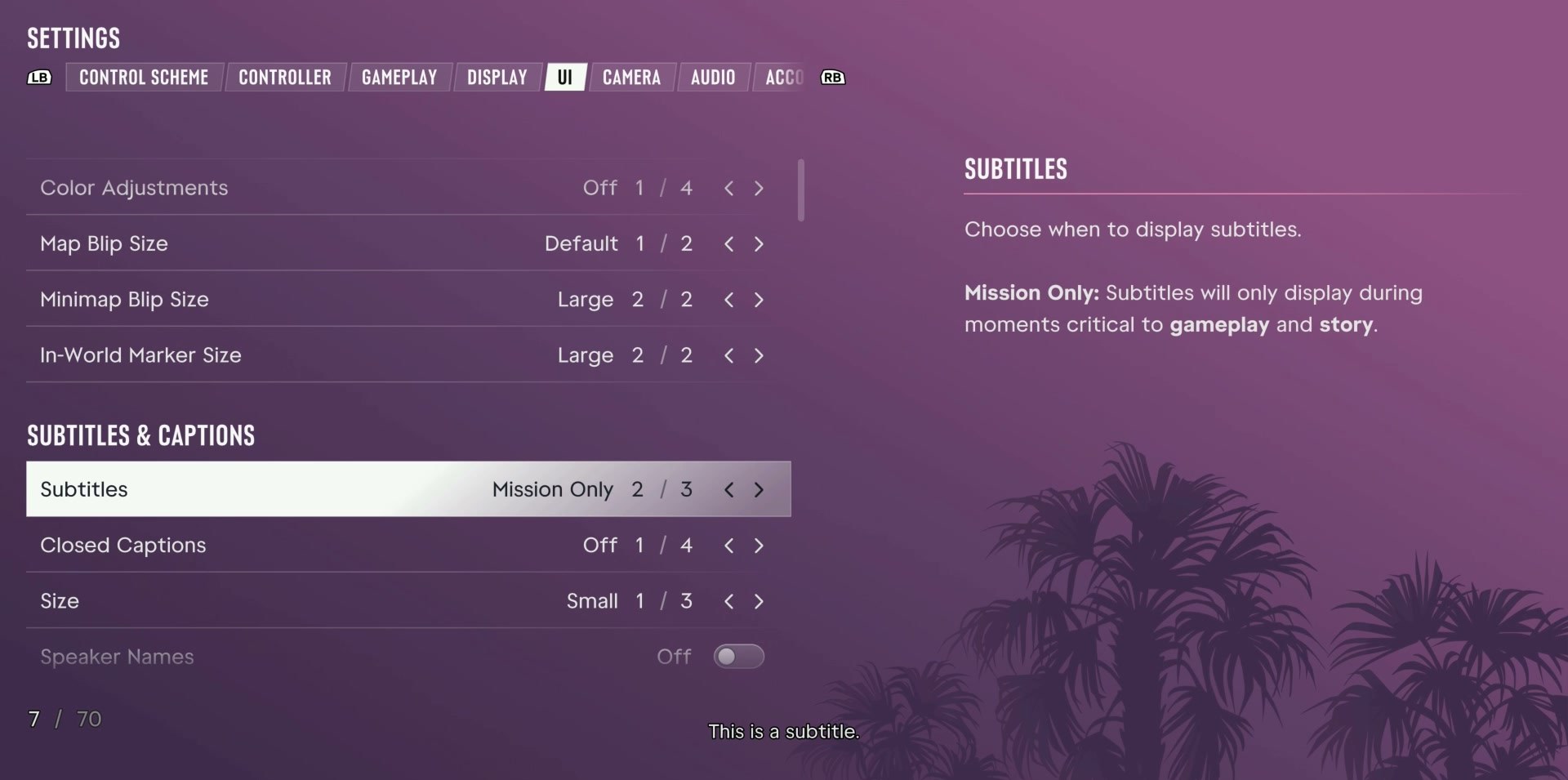
Image: DPJ (YouTube)
In Audio, Red Bull keeps dialogue high and lowers Music and Sound Effects to 7 or 8 if shootouts and the radio drown out conversations. There is also Mono Audio, Tinnitus Reduction, GPS Voice, muting licensed music and the vehicle radio. If a voice reads your menus aloud, that is Screen Narration: Audio > Narration > Screen Narration Off (Output Lag). If it continues outside the game, on PS5 it is the system screen reader (Settings > Accessibility). For radio on foot, see our headphones guide.
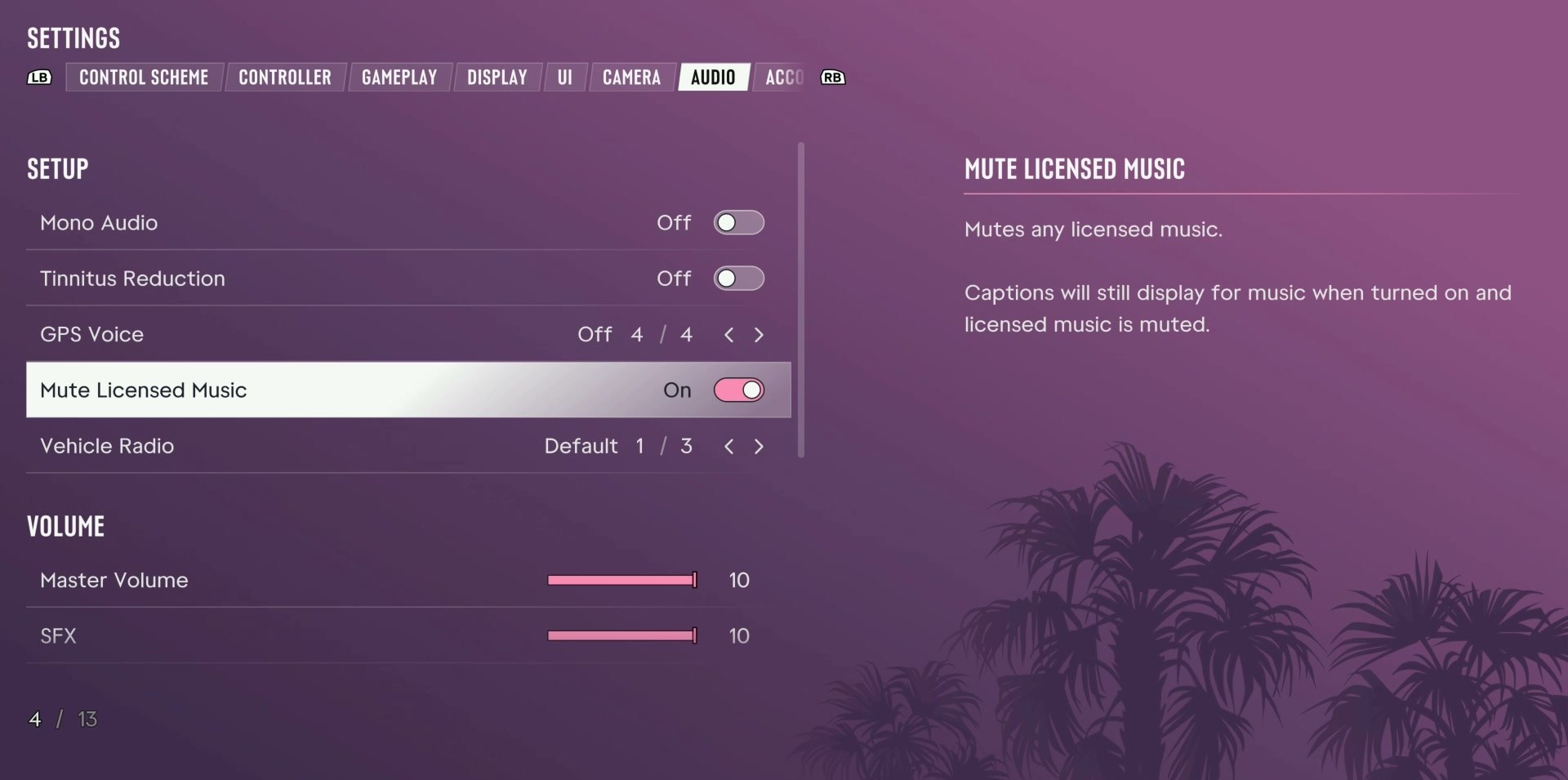
Image: DPJ (YouTube)
HDR and TV settings
Output Lag and Red Bull agree on the order: calibrate HDR on the console first, then adjust the game. In Display > Brightness Calibration, raise or lower the value until the Rockstar logo on the test screen is just visible. If your TV does not show it at the maximum step, set it as close as you can and judge on a bright daytime street and a dark interior (Output Lag). KeenGamer adds that HDR keeps the detail in Vice City interiors and night streets. Red Bull recommends HDR set to "On When Supported".
There is disagreement on 120Hz, VRR and TV motion smoothing:
- Game mode: KeenGamer and Red Bull both use it to cut input lag.
- Motion smoothing: KeenGamer and Red Bull say turn it off. Output Lag says it can make 30 fps look smoother at the cost of input lag, and suits exploring more than shootouts.
- 120Hz and VRR: KeenGamer says they do nothing at 30 fps. Output Lag recommends them, because on Series X they can smooth dips. On PS5, according to Digital Foundry, VRR only works above 48 fps, so it does not help.
What to do if something looks off
- Blurry image with Motion Blur at 0: fully close the game and reopen it; if it persists, restart the console (Output Lag). Some ghosting when turning comes from temporal anti-aliasing and cannot be removed.
- Effects you cannot turn off: per Output Lag there is no setting for the vignette or depth of field, and heat haze is a weather effect.
- Everything feels odd: use Restore Default on the tab, or Restore All.
FAQ
Is there a Performance mode in GTA 6? No. Rockstar targets 30 fps on every console and the reviews find no mode selector.
Which console runs it best? PS5 Pro, according to Digital Foundry: a sharper image with PSSR and a near-locked 30 fps.
What is the best setting to change first? Motion Blur Strength to 0, which is the one the guides repeat most.
Can I remove the background blur? There is no depth of field setting, per Output Lag. Only motion blur can be turned off.
How do I run like in GTA 5? Switch the scheme to Classic (X on PS5, A on Xbox) or set Movement Speed to Run or Jog.
If the cops are on your tail and you want to understand the stars, there is our wanted system guide.
Full guide: GTA VI map: the State of Leonida and Vice City →
Sources Rockstar Newswire·KeenGamer·Red Bull·Destructoid·GTA BOOM·PC Gamer·Output Lag·DPJ. Consulted on November 24, 2026.